
 PearPass
How to Delete a Vault
Permanently delete a vault from PearPass on desktop, mobile, or the browser extension.
Follow the steps below to delete a vault from PearPass.
Deleting a vault permanently removes it and all its contents. This action cannot be undone.
Sign in
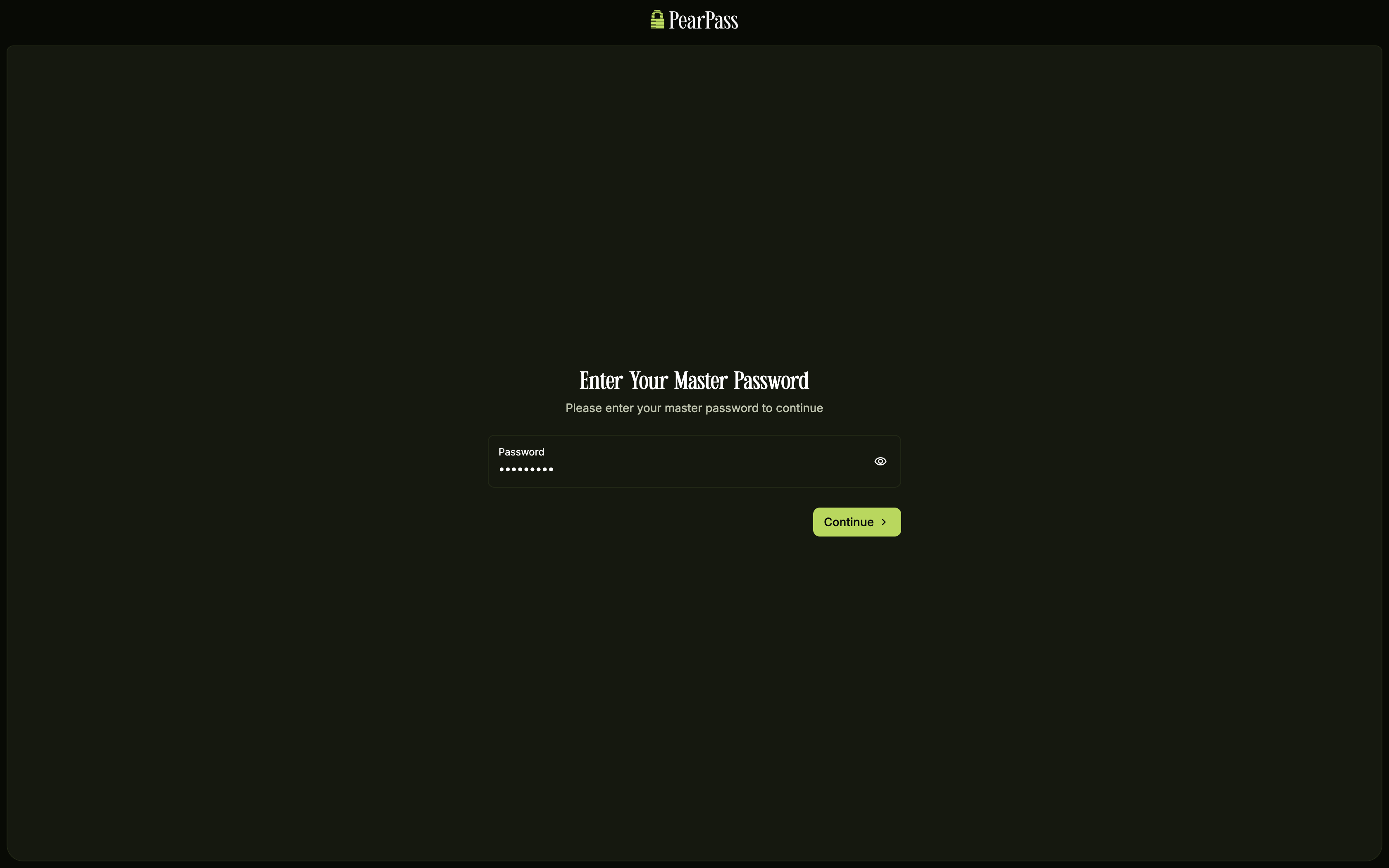
Open PearPass on your computer and sign in with your master password.
Open Settings
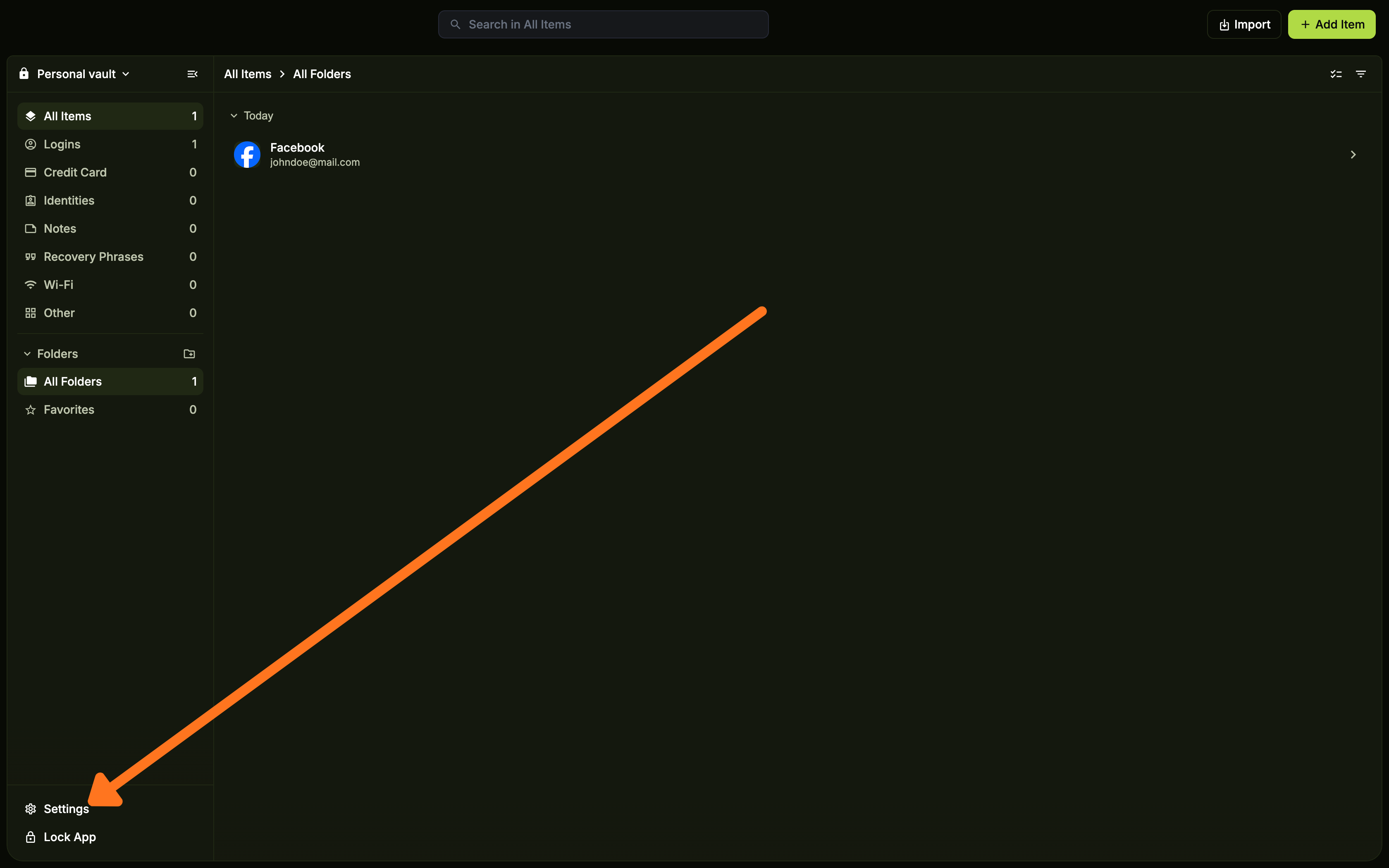
In the sidebar, click Settings.
Open the vault menu
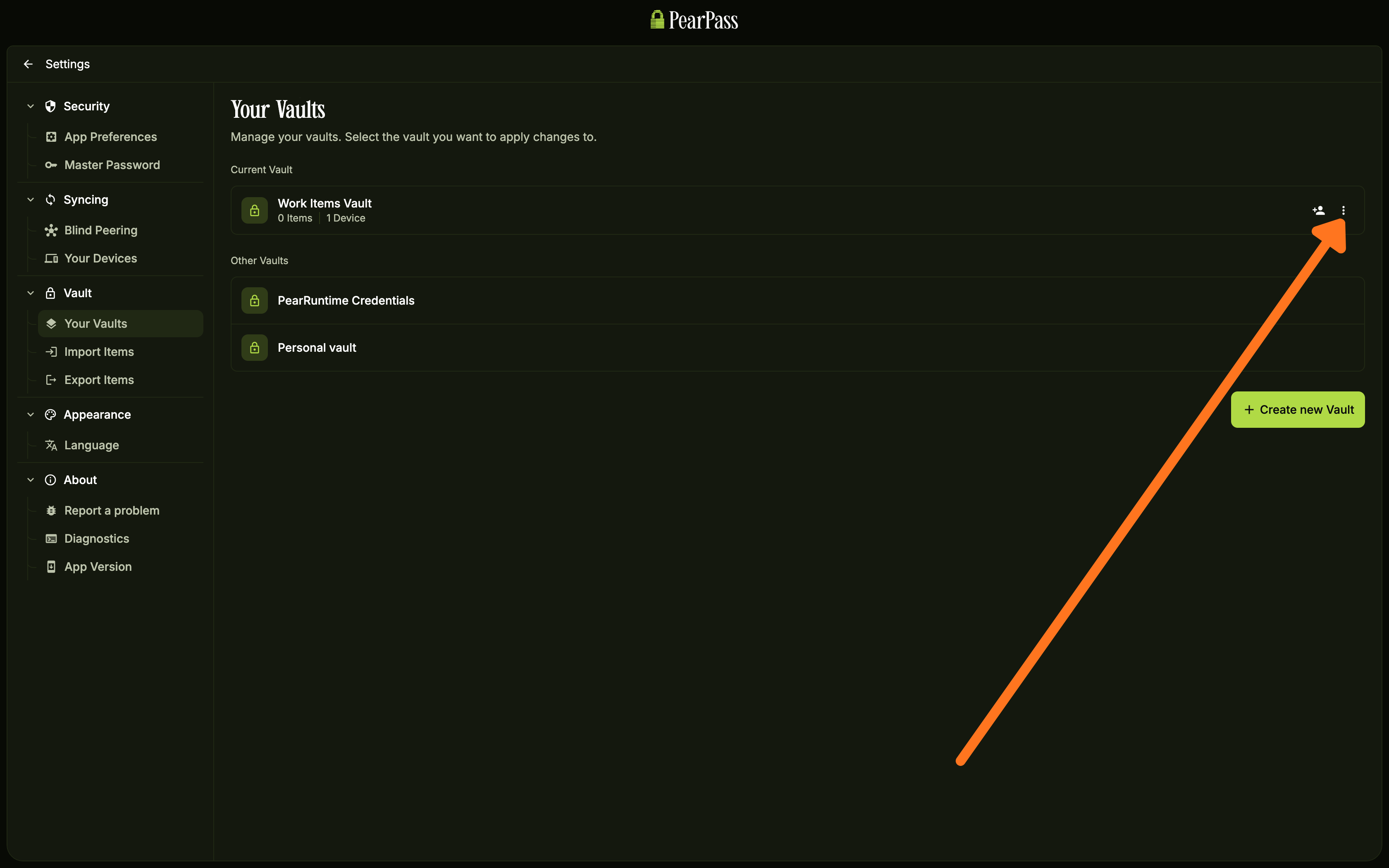
In the Settings sidebar, under the Vault section, click Your Vaults. On the Your Vaults screen, click the three vertical dots ( ⋮ ) next to the vault you want to delete.
The ( ⋮ ) menu is only available for the vault listed under Current Vault. If the vault you want to delete is listed under Other Vaults, click that vault first to set it as your current vault, then proceed.
Click Delete
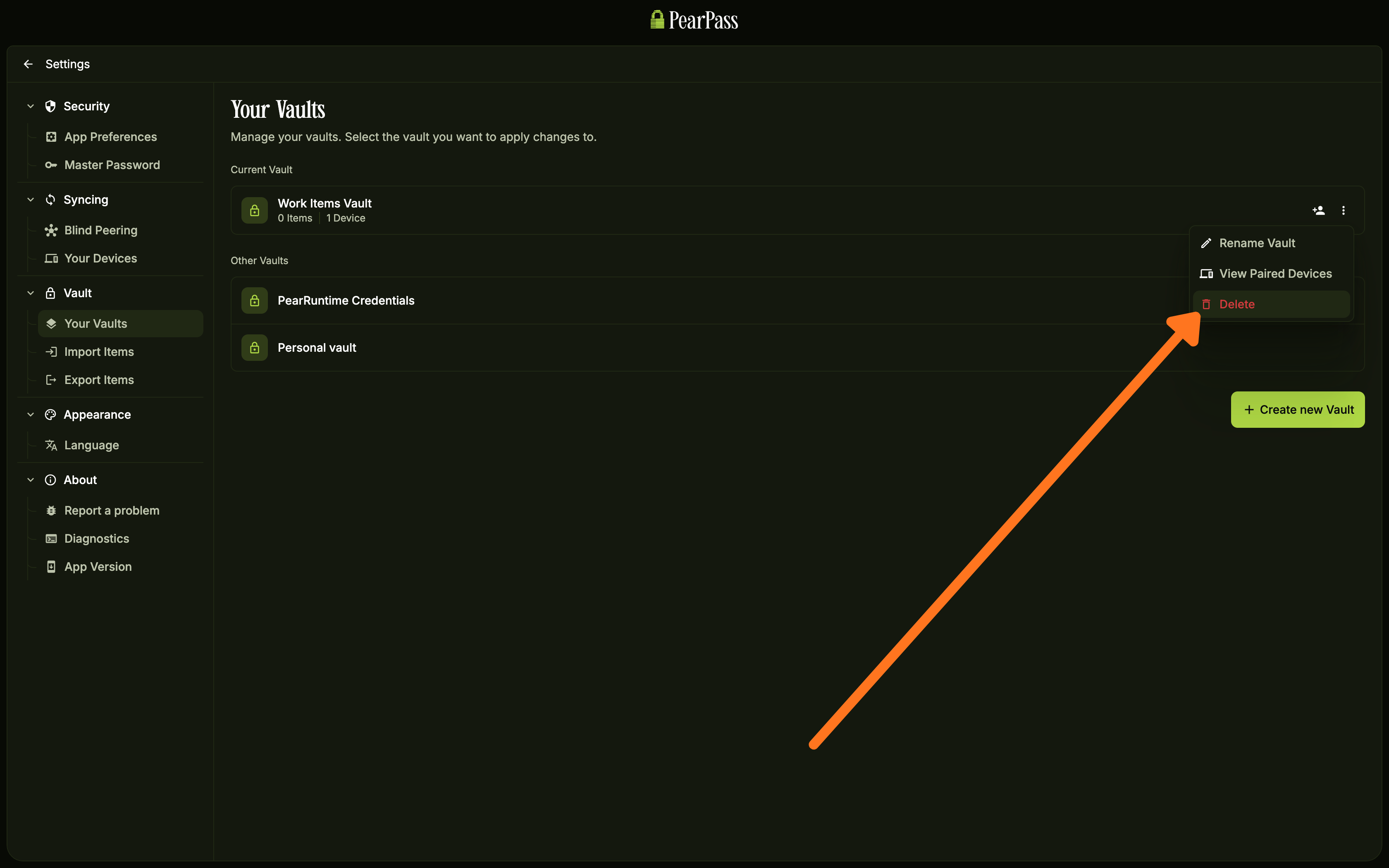
Click Delete from the dropdown menu.
Confirm deletion
In the confirmation dialog, enter your master password in the Confirm With Master Password field, then click Delete.
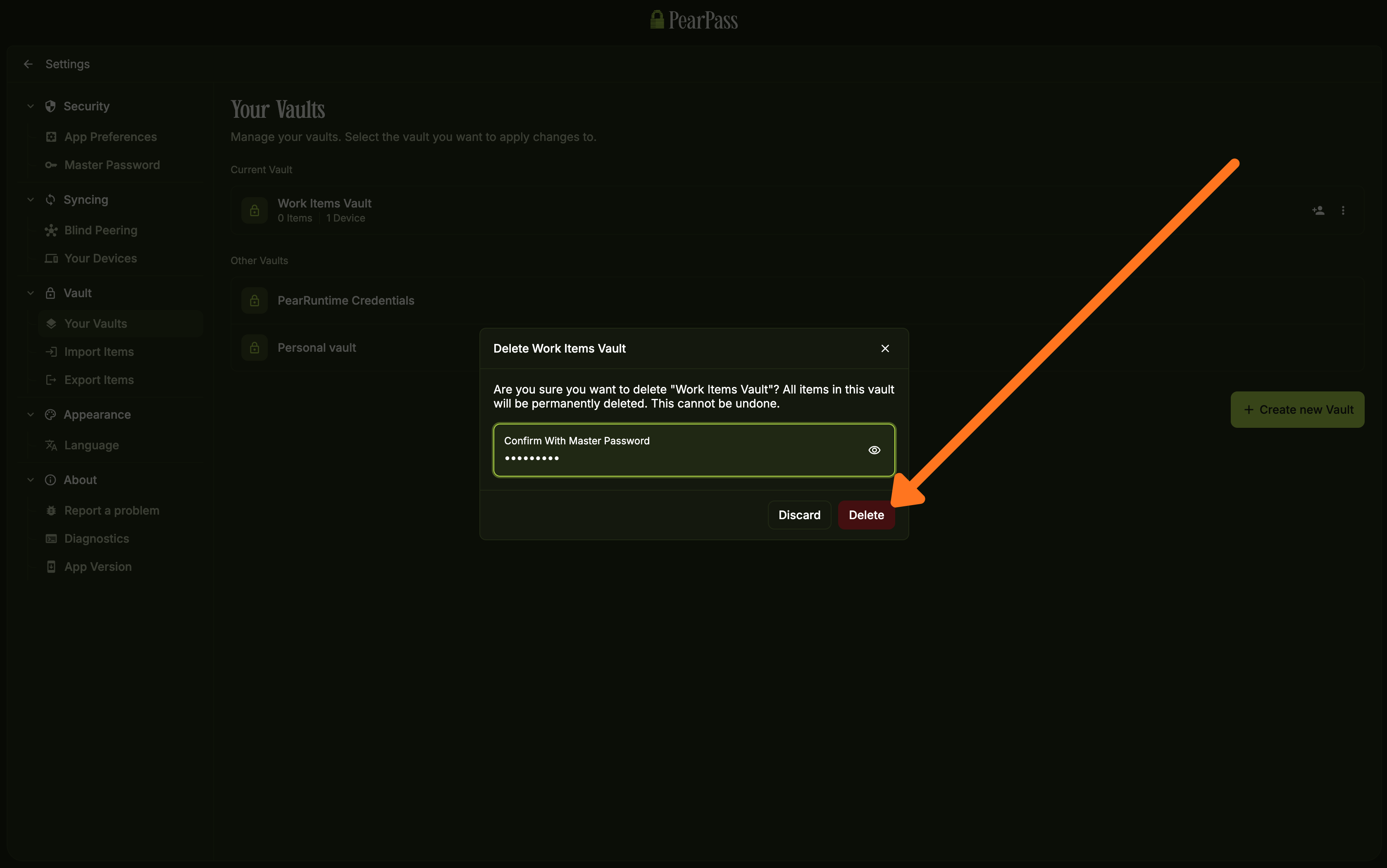
Sign in
Open PearPass on your mobile device and sign in with your master password.
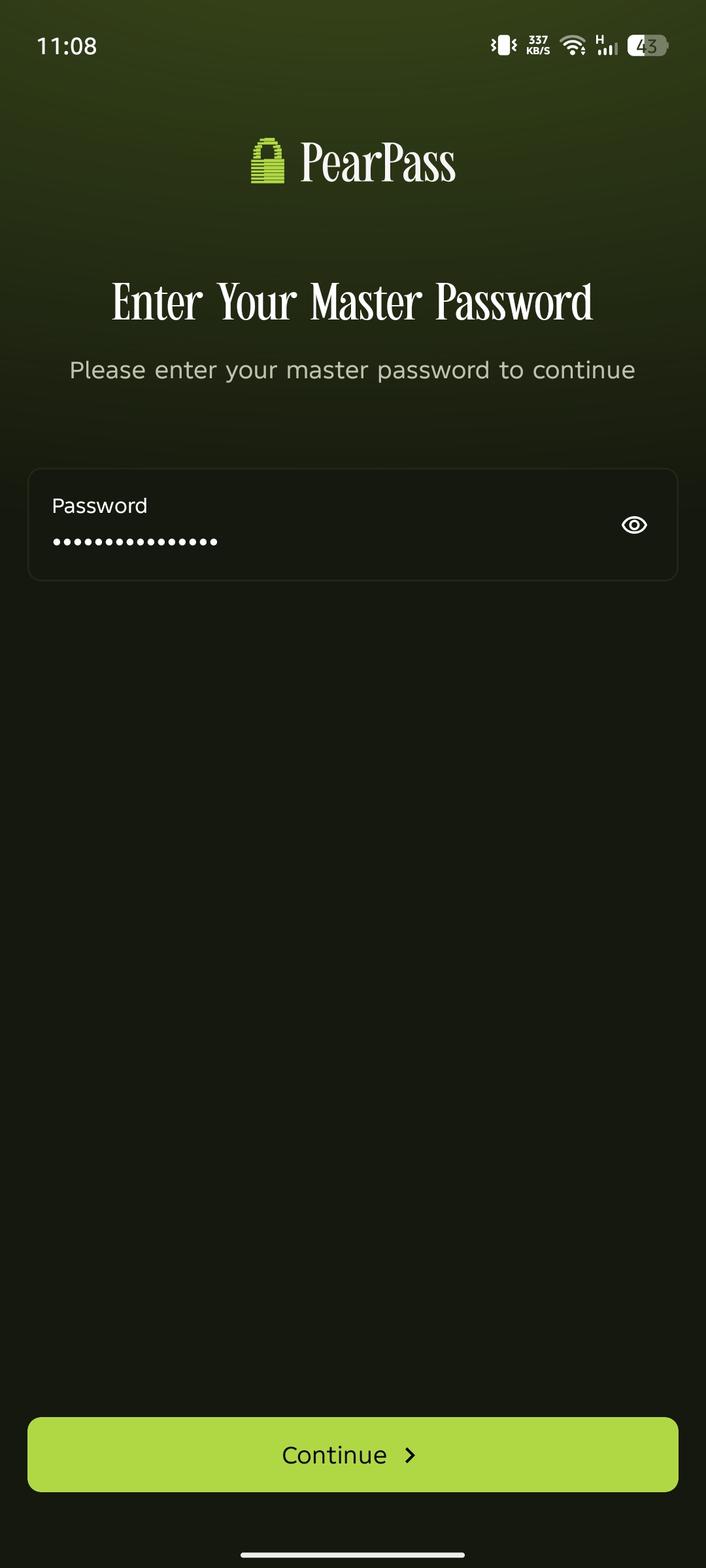
Open Settings
From the vault screen, tap Settings in the bottom navigation bar.
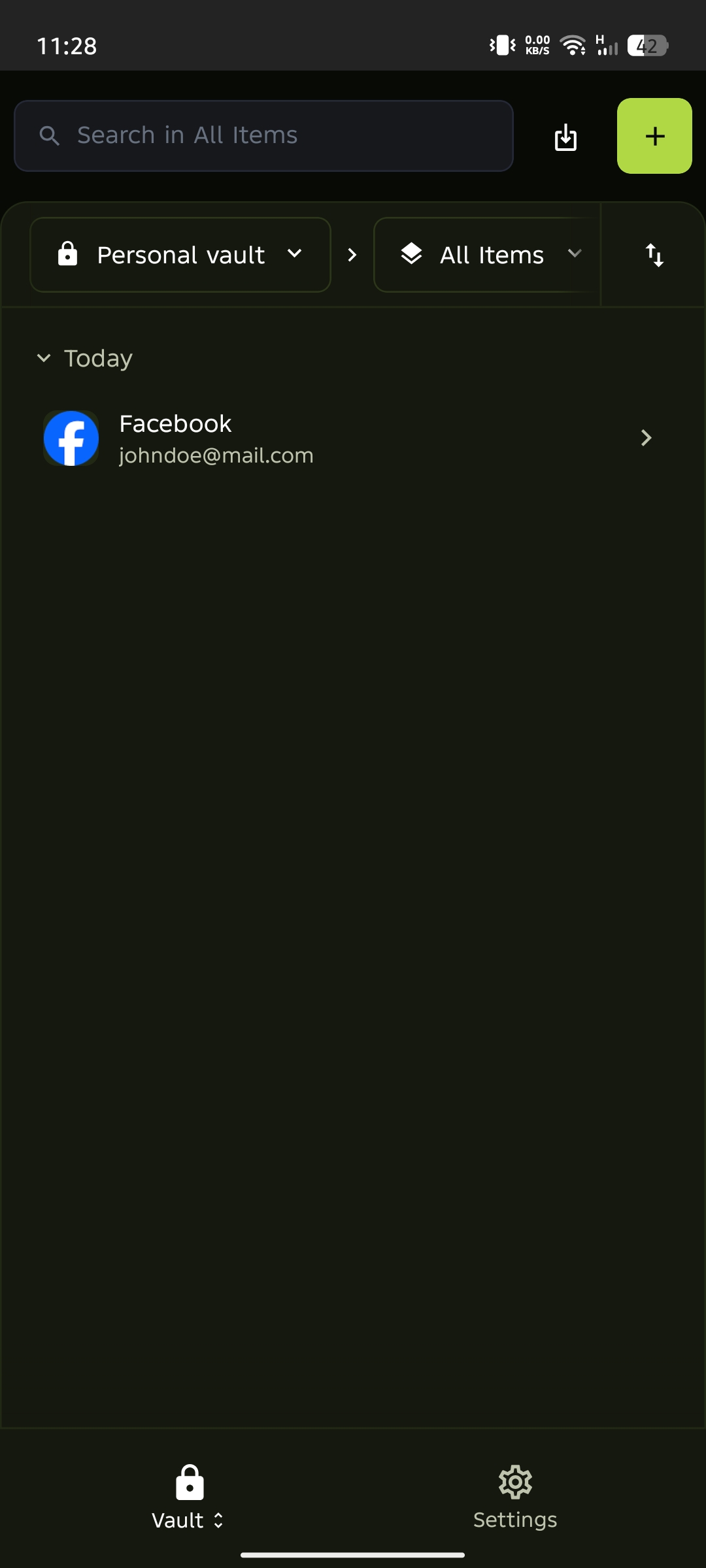
Select Your Vaults
Under the Vault section, tap Your Vaults.
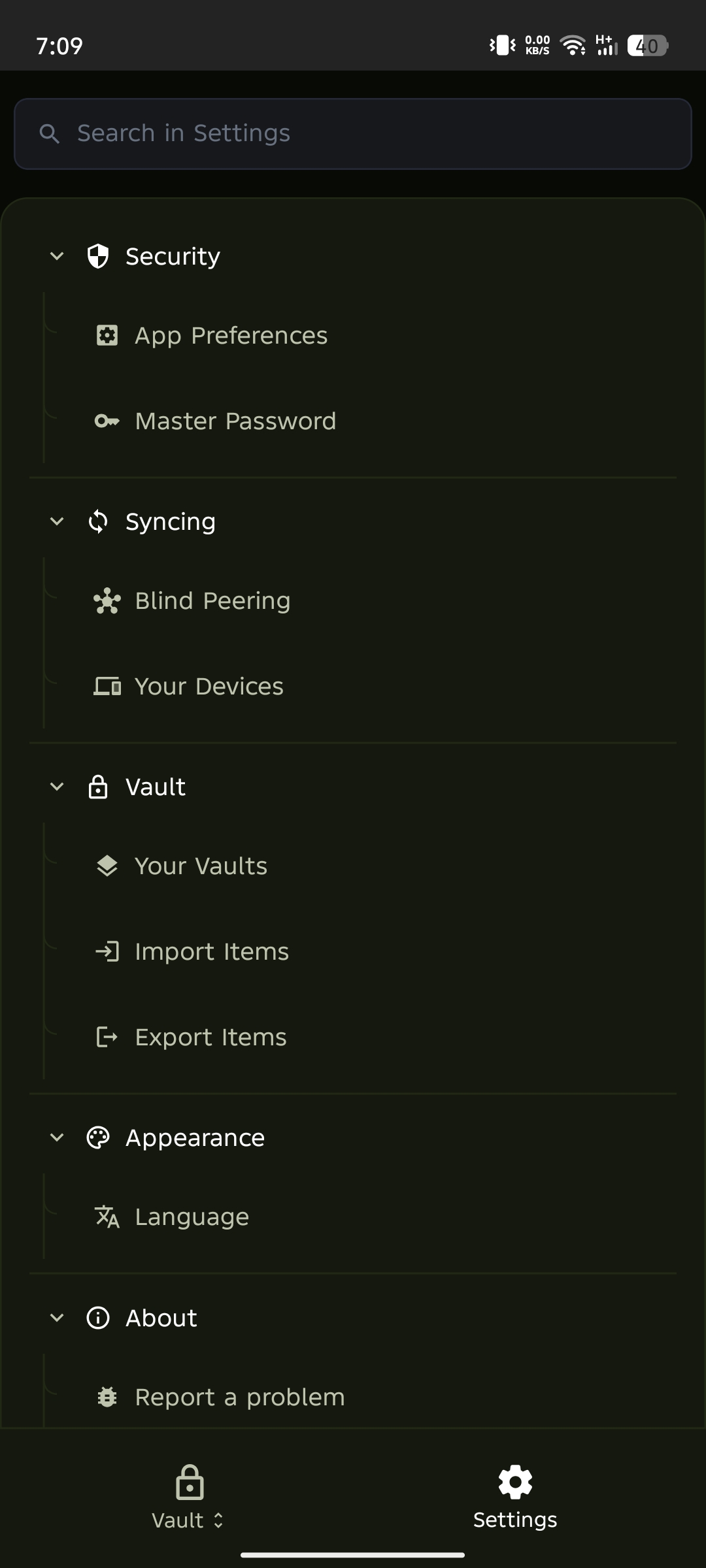
Open the vault menu
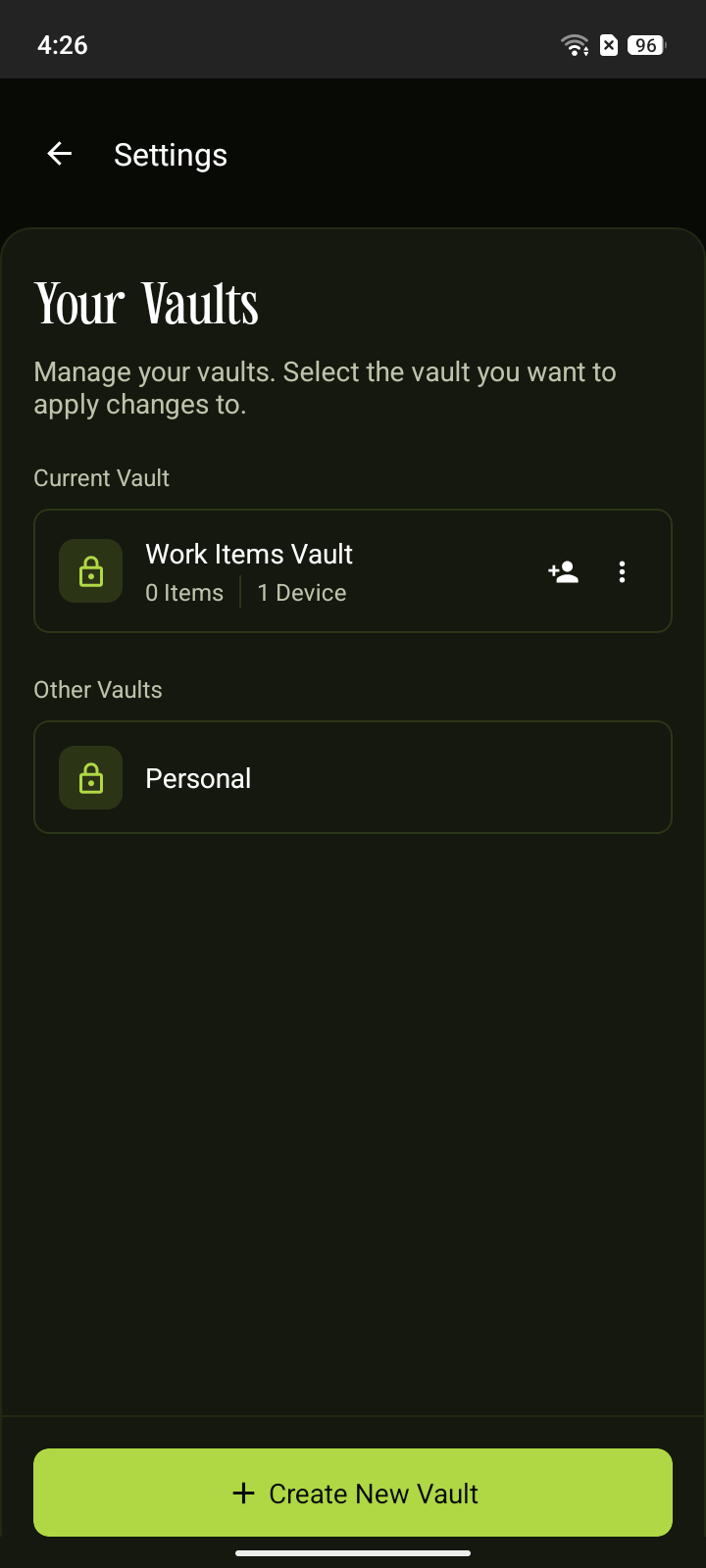
On the Your Vaults screen, tap the three vertical dots ( ⋮ ) next to the vault you want to delete.
The ( ⋮ ) menu is only available for the vault listed under Current Vault. If the vault you want to delete is listed under Other Vaults, tap that vault first to set it as your current vault, then proceed.
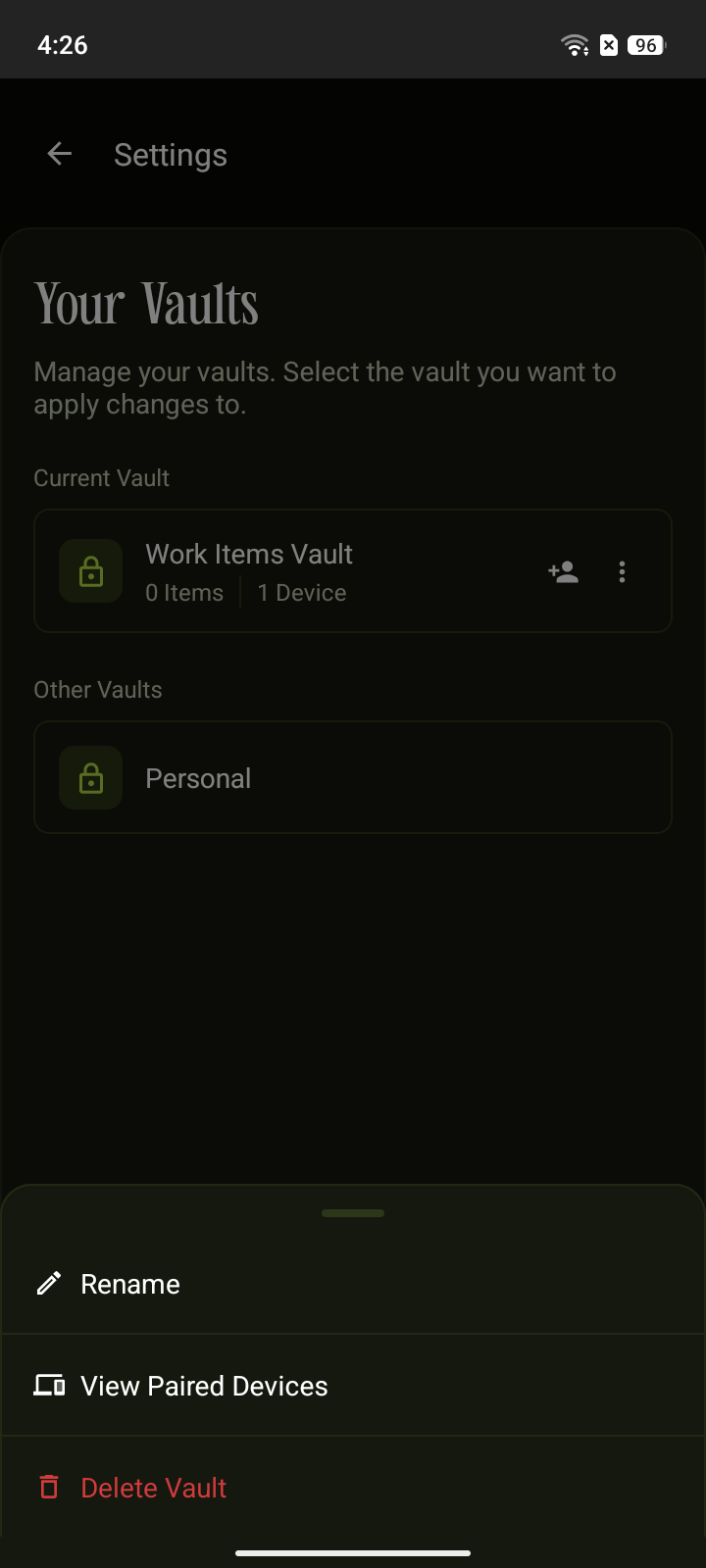
Tap Delete Vault
Tap Delete Vault from the menu.
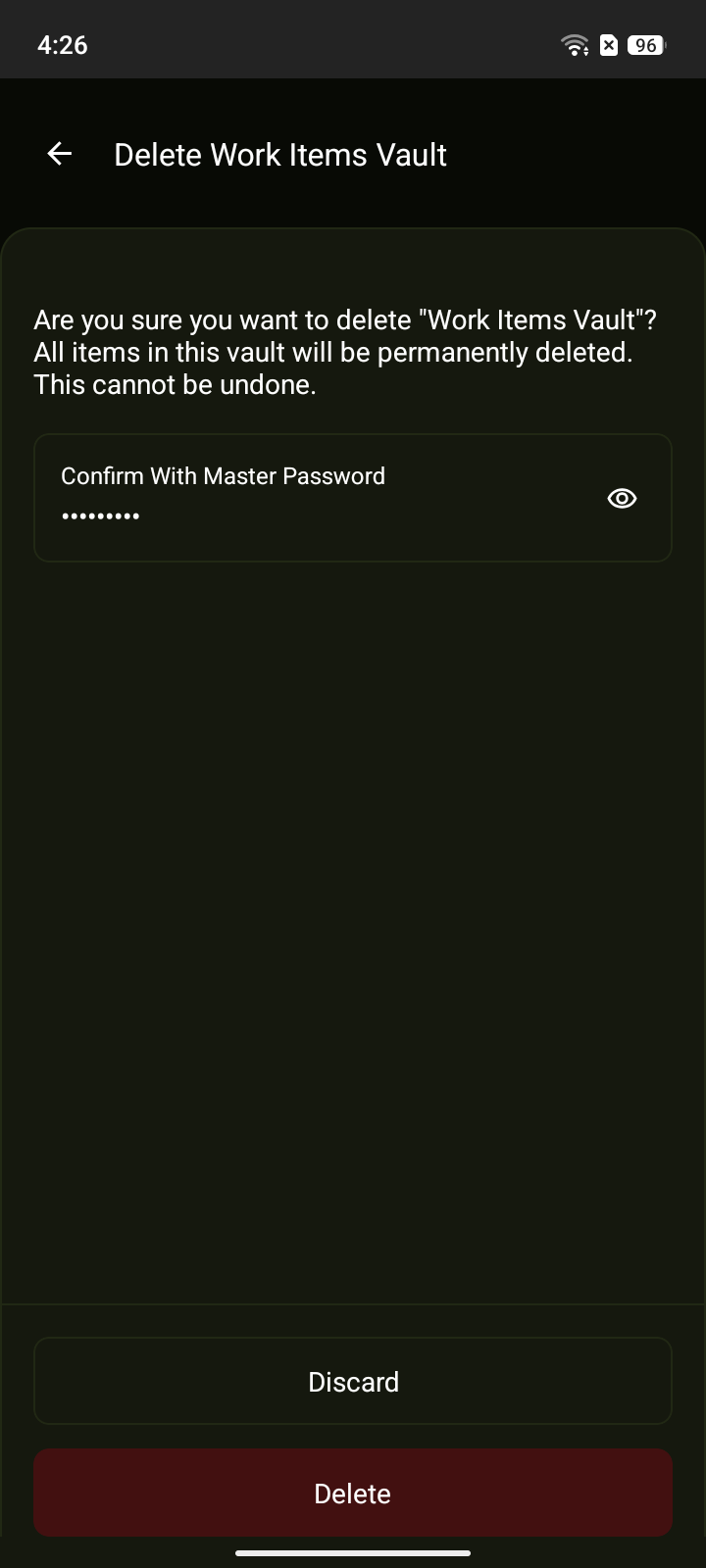
Confirm deletion
On the confirmation screen, enter your master password in the Confirm With Master Password field, then tap Delete.
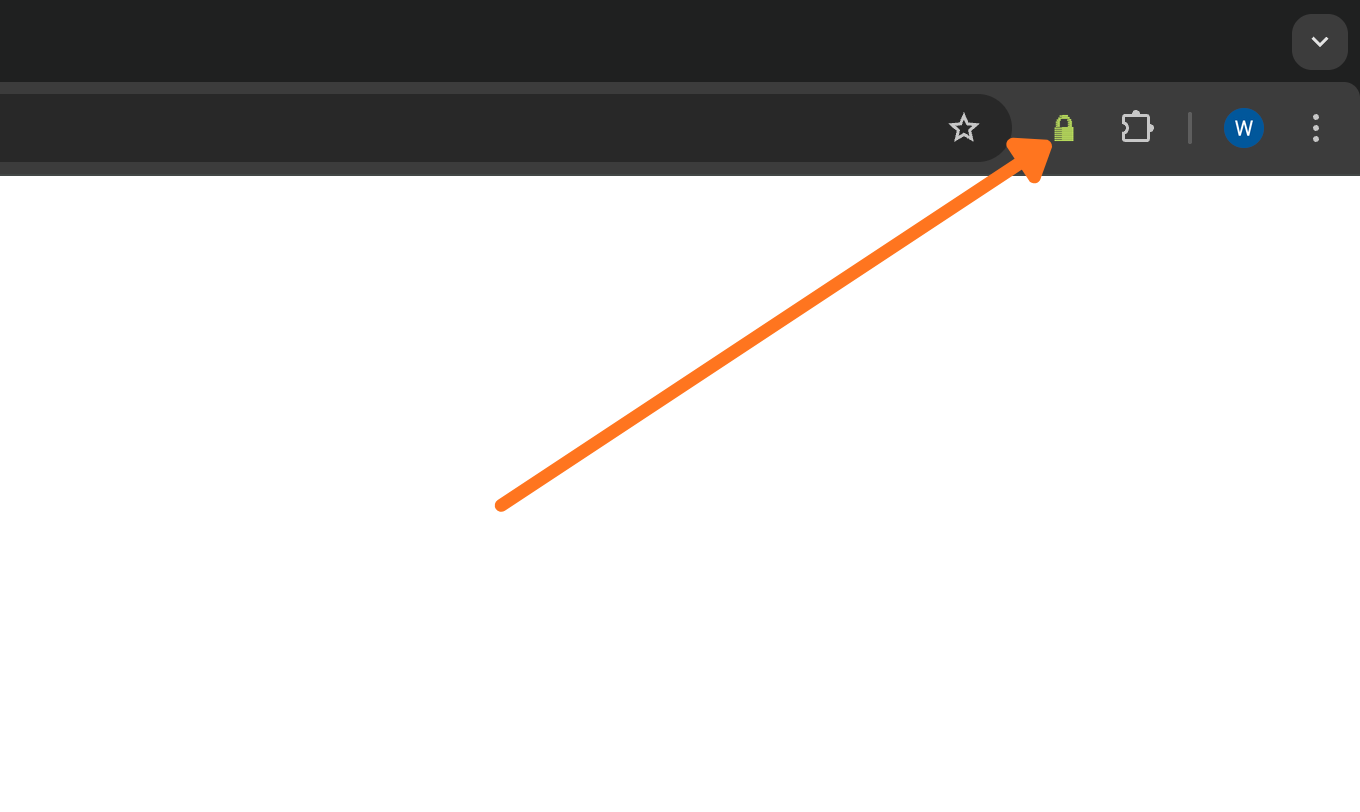
Open the extension
In your browser toolbar, click the PearPass icon.
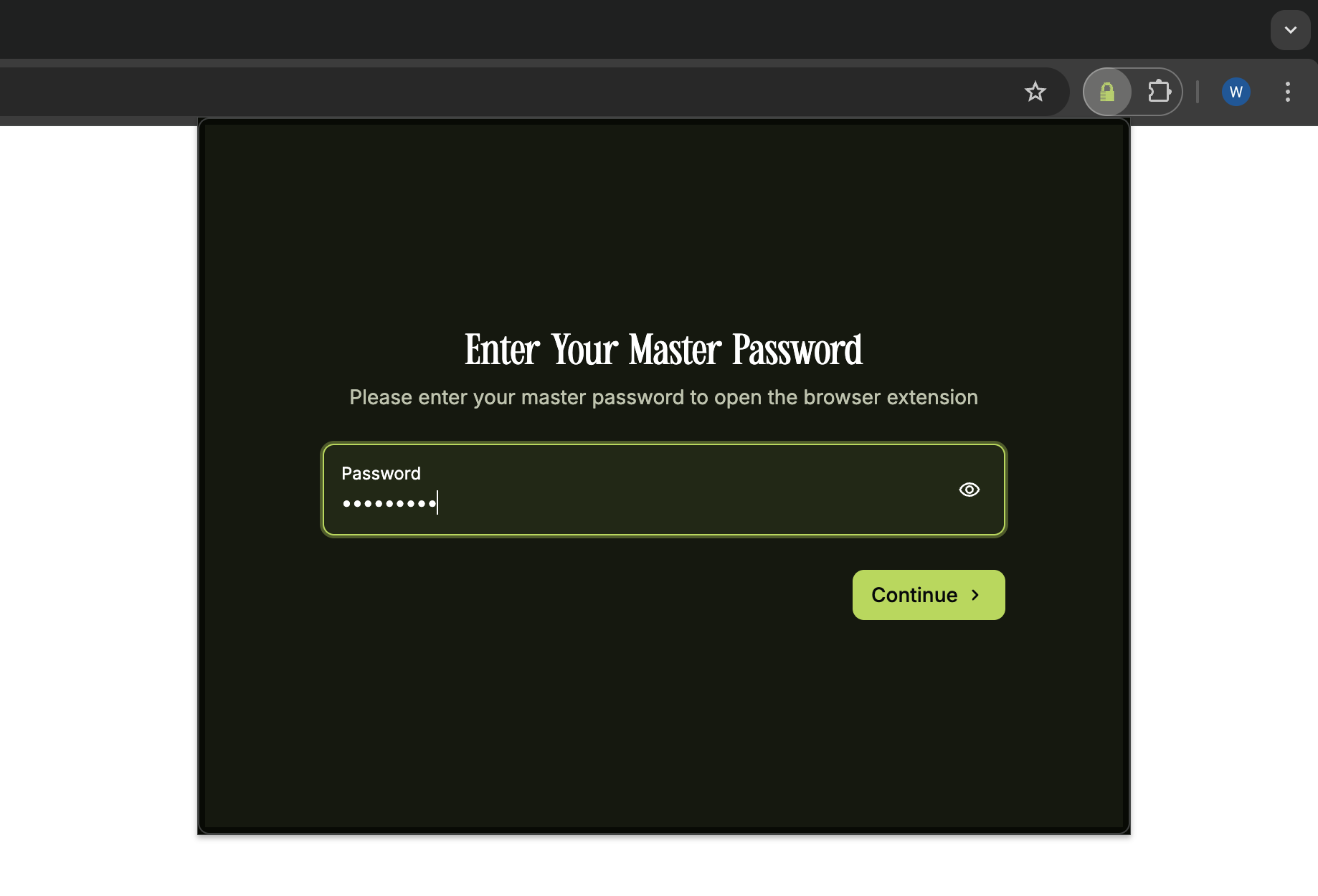
Sign in
Sign in with your master password.
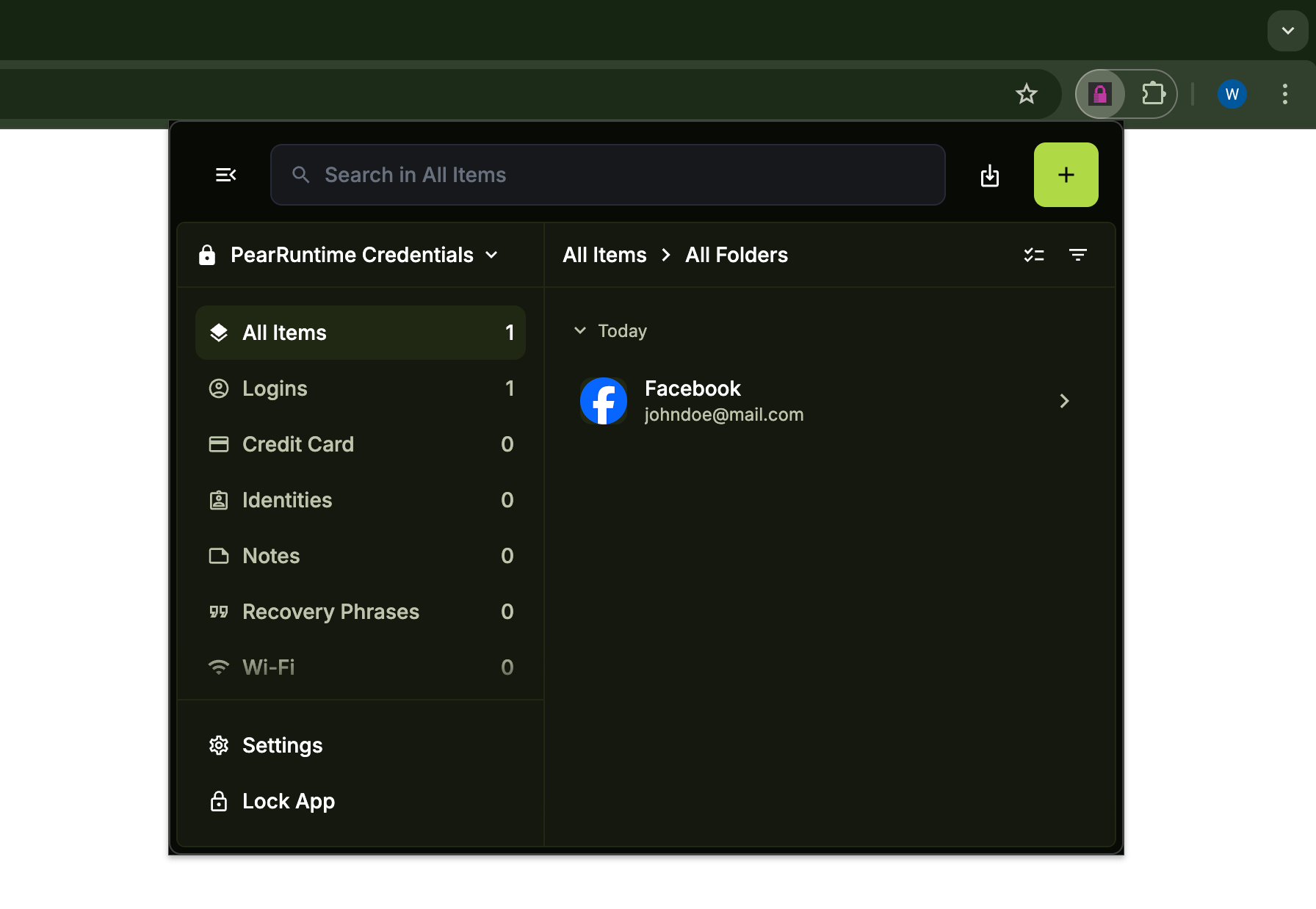
Open Settings
Click the menu icon in the top left corner to open the side menu, then click Settings.
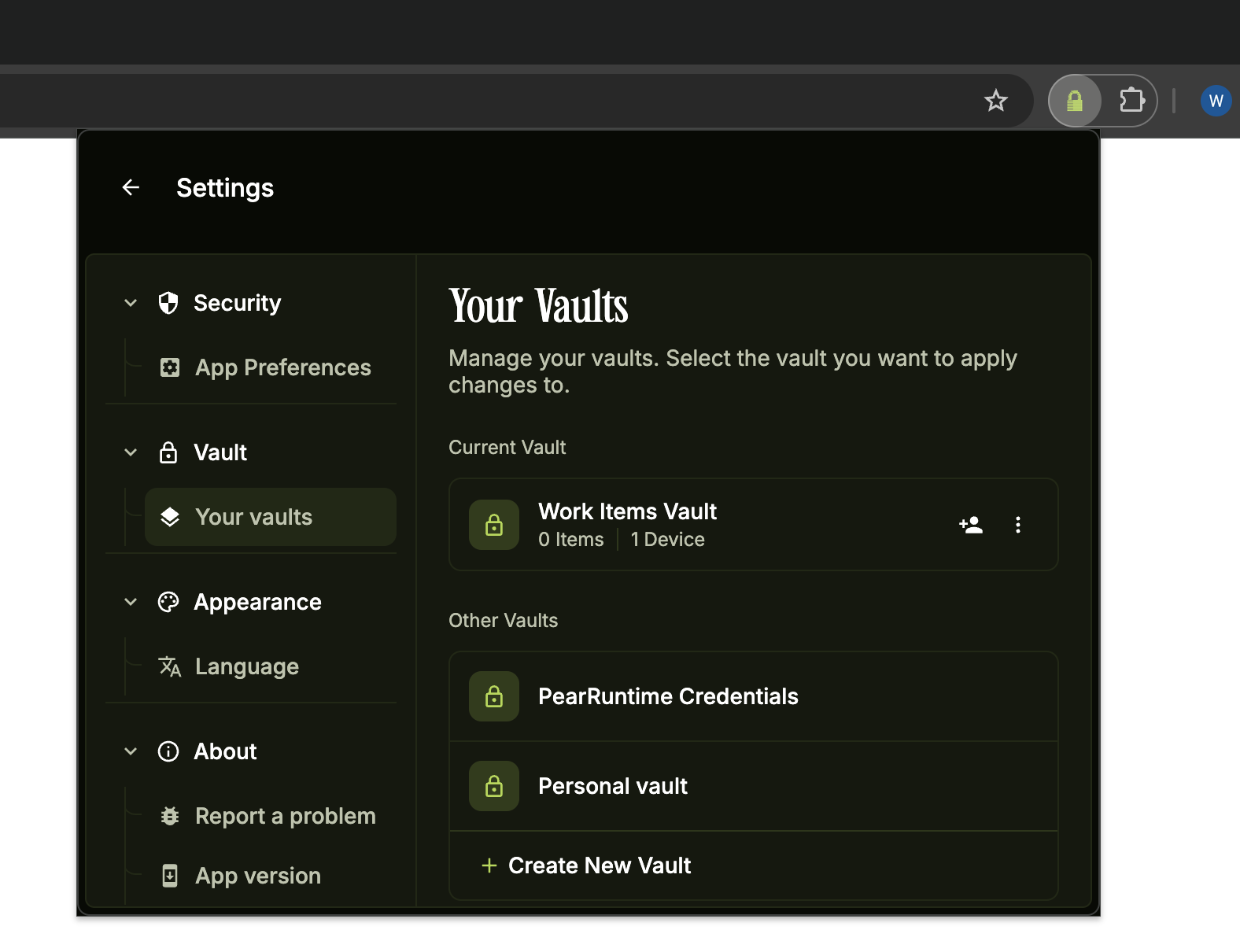
Open the vault menu
In the Settings sidebar, under the Vault section, click Your Vaults. On the Your Vaults screen, click the three vertical dots ( ⋮ ) next to the vault you want to delete.
The ( ⋮ ) menu is only available for the vault listed under Current Vault. If the vault you want to delete is listed under Other Vaults, click that vault first to set it as your current vault, then proceed.
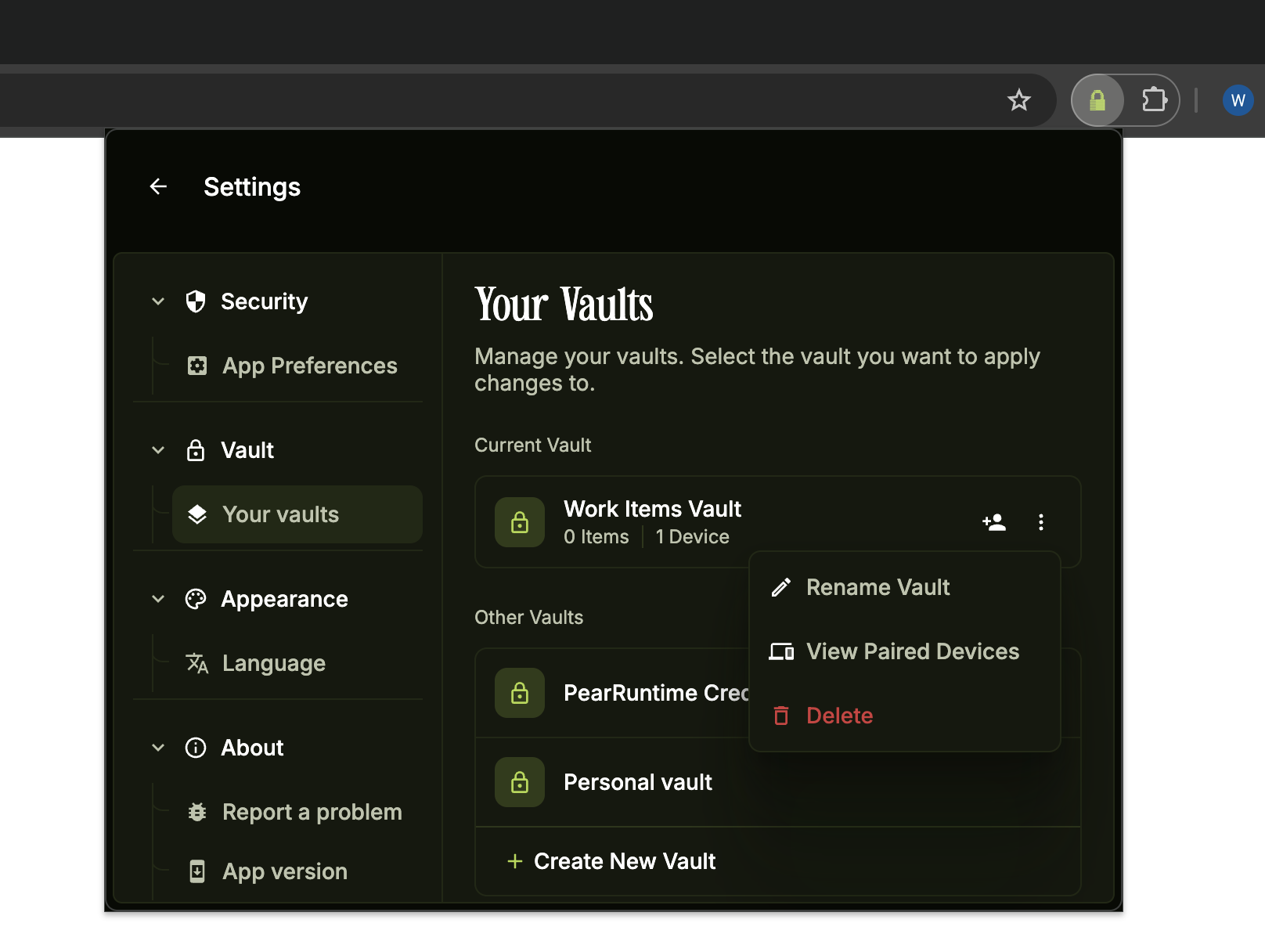
Click Delete
Click Delete from the dropdown menu.
Confirm deletion
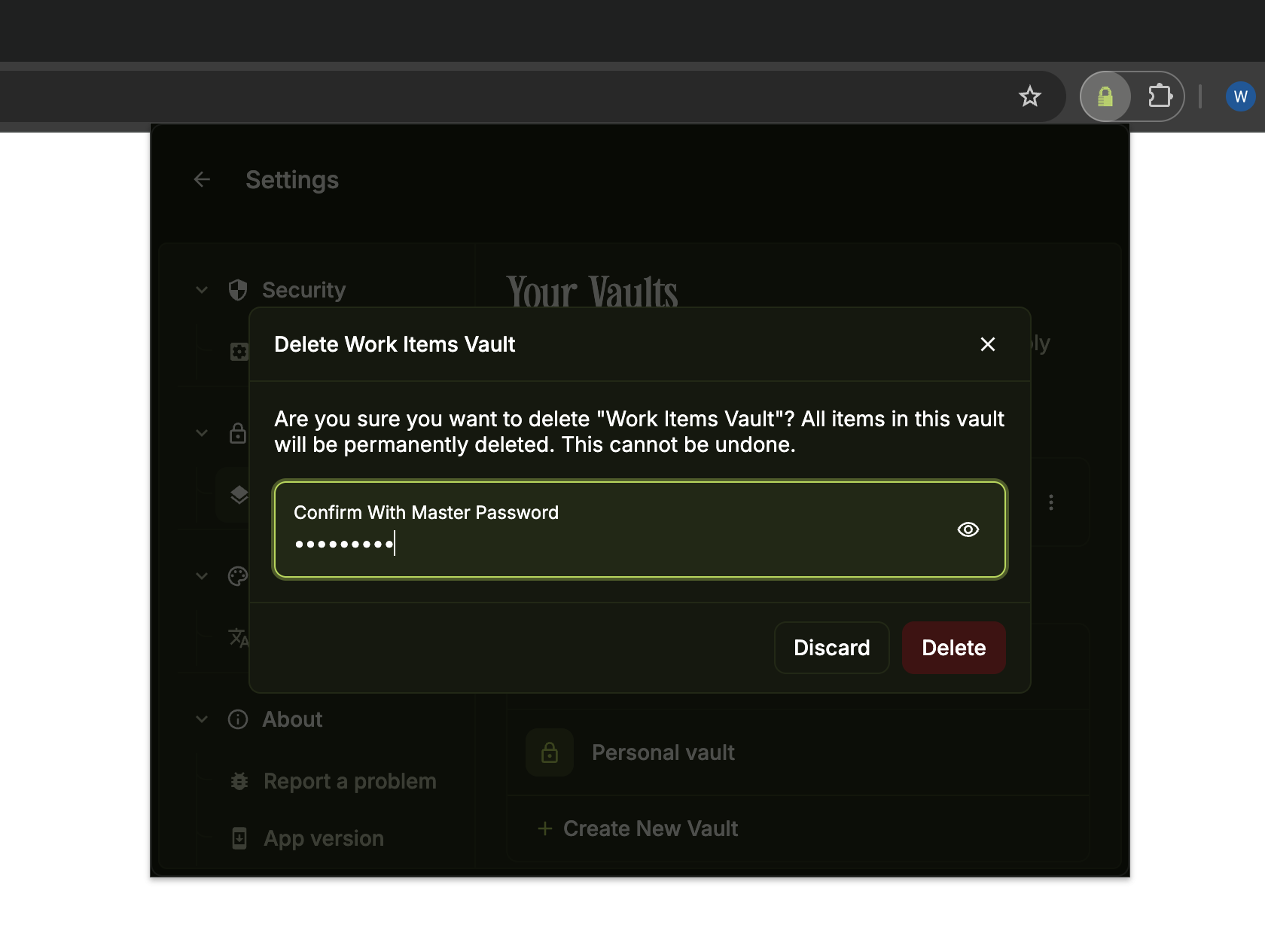
In the confirmation dialog, enter your master password in the Confirm With Master Password field, then click Delete.
How to Create a Vault
Create a new PearPass vault to securely store your passwords, notes, and other sensitive information, on desktop, mobile, or the browser extension.
How To Sync a Vault Between Devices
Sync your PearPass vault between devices securely using peer-to-peer technology, with no centralized servers required.